The smallest possible output
Uncompressed BMP plus adjustable JPG compression gives you the smallest files of any BMP conversion we offer — ideal for photos.
Convert BMP to JPG online with secure cloud processing. Turn a large bitmap into a compact, widely compatible photo. Free to start; no software installation.
Drop files here or click to upload
BMP· up to 20.0 MB per file
Files are private and deleted after conversion
Anonymous files: 20 MB. Free accounts: 50 MB and batches of 5. Paid accounts: 200 MB and batches of 100.
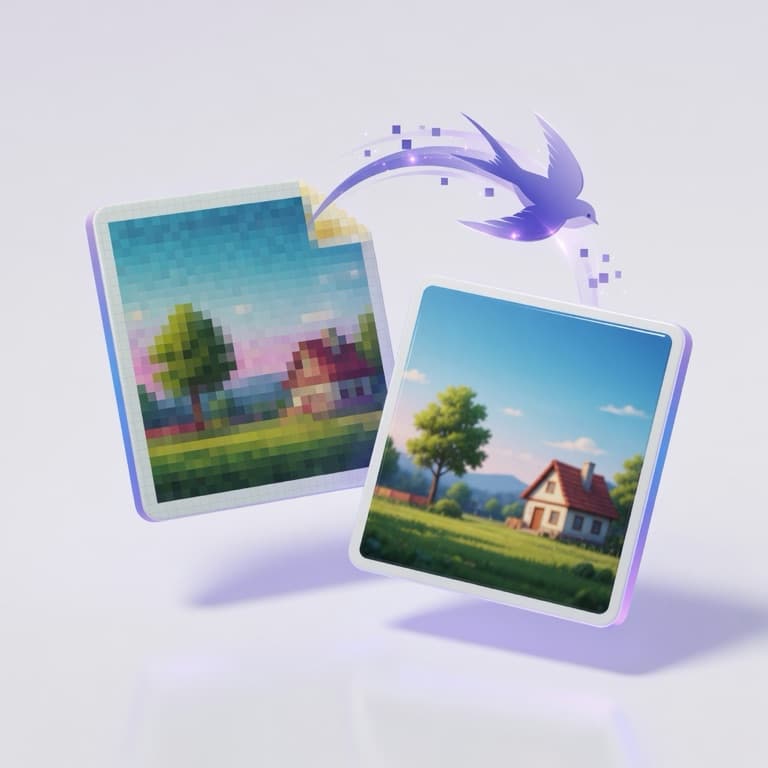
Convert BMP to JPG online with secure cloud processing. Turn a large bitmap into a compact, widely compatible photo. Free to start; no software installation.
Uncompressed BMP plus adjustable JPG compression gives you the smallest files of any BMP conversion we offer — ideal for photos.
Both standard bottom-up BMPs and top-down (negative-height) BMPs decode correctly, so files that failed elsewhere convert cleanly here.
Uploads use HTTPS, converted JPGs are auto-deleted within 24 hours, and uploaded BMPs are removed within 6–24 hours.
Anonymous visitors get 1 free server conversion up to 20 MB; free accounts get 3 conversions every 30 days at 50 MB with batches of 5.
Drag and drop or browse to a .bmp file — up to 20 MB anonymous, 50 MB with a free account, or 200 MB on a paid plan, sent over HTTPS.
Leave it at the actual default 92 for crisp detail, use 90–95 for archival prints, or lower it to 60–75 when the smallest file matters most.
The uncompressed bitmap — bottom-up or top-down — is decoded and re-encoded as a JPG at your chosen quality, shrinking the file far more than a PNG conversion would.
Get the file through a signed download link in seconds. It is auto-deleted from our servers within 24 hours, and the uploaded BMP within 6–24 hours.
Choose settings that match the result you need.
↔ Swipe sideways to view every column.
| Need | Recommended setting | Best for |
|---|---|---|
| Quality (1–100, default 92) | Controls JPG compression. The actual default is 92 for crisp detail. Use 90–95 for prints or archiving, and 60–75 when the smallest possible file matters more than fine detail. | Controls JPG compression. The actual default is 92 for crisp detail. Use 90–95 for prints or archiving, and 60–75 when the smallest possible file matters more than fine detail. |
Review what the tool accepts, how it processes the file, and what it produces.
↔ Swipe sideways to view every column.
| Feature | BMP | JPG |
|---|---|---|
| Format | BMP | JPG |
| Processing | Secure cloud processing | Secure cloud processing |
| Result | Convert BMP to JPG online with secure cloud processing. Turn a large bitmap into a compact, widely compatible photo. Free to start; no software installation. | Convert BMP to JPG online with secure cloud processing. Turn a large bitmap into a compact, widely compatible photo. Free to start; no software installation. |
The output is ready for common workflows supported by its format.
BMP is the legacy Windows bitmap format, dating back to early versions of Microsoft Windows. Files are usually stored uncompressed, and they typically come from old Windows software, scanners, or system screenshots.
BMP stores pixels exactly and is trivially simple to read, but the lack of compression makes files enormous — often many times larger than an equivalent PNG. Browsers and mobile apps handle it poorly, and there is no benefit that justifies the size. Convert BMP to PNG to keep lossless quality, or to JPG for photographs where smaller files matter.
JPG (also written JPEG) is the most widely used lossy image format for photographs, standardized by the Joint Photographic Experts Group in 1992. Practically every camera, phone, and image application can create and open it.
Its strengths are small file sizes for photos and universal compatibility across devices, browsers, and software. The trade-offs: lossy compression introduces artifacts, there is no transparency support, and quality degrades a little more with every re-save. Use JPG for photographs; choose PNG for screenshots, logos, or anything that needs sharp edges or transparency.
This tool uses secure cloud processing for formats or operations browsers cannot handle reliably.
87,400 votes
Convert BMP to JPG online with secure cloud processing. Turn a large bitmap into a compact, widely compatible photo. Free to start; no software installation.
BMP to JPG ConverterWe use cookies for analytics and ads. Accept to allow full measurement and personalized ads, or reject to keep storage disabled. Privacy Policy