Format basics
How I Choose Image File Formats
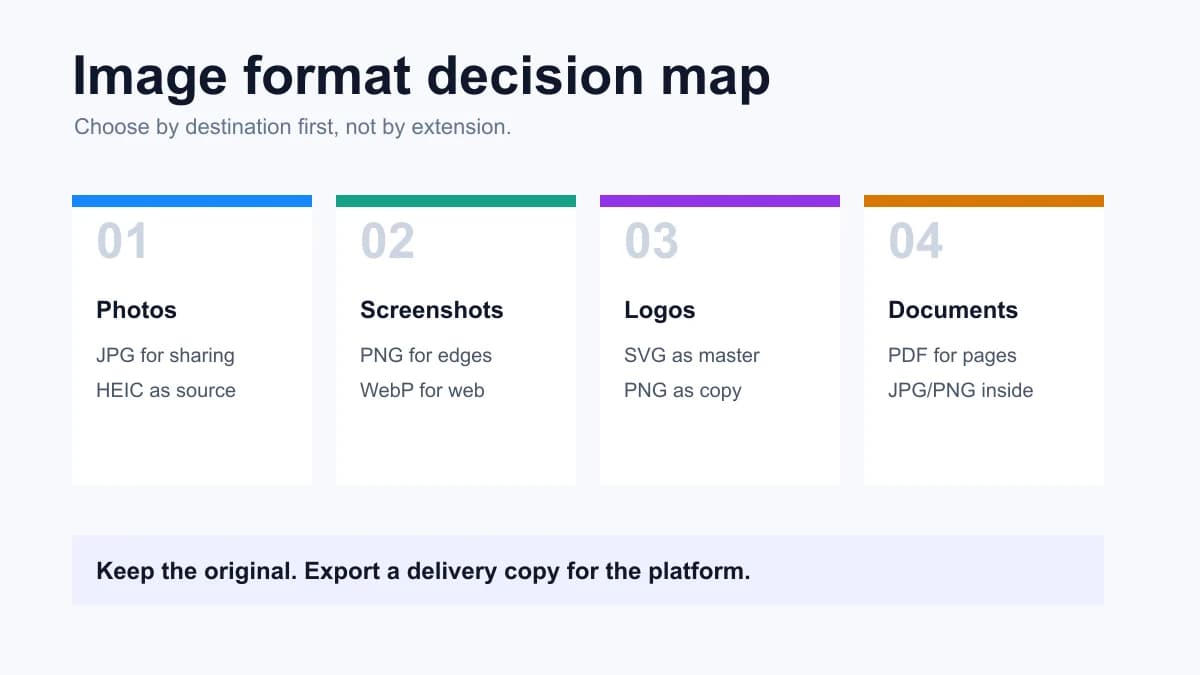
I do not choose formats by popularity. I choose them by what the next system needs: upload compatibility, transparent edges, page speed, editability, or fixed document layout.
01
Quick answer
When someone asks me “which image format is best,” I usually ask one question back: where is the file going next? A job application form, a Shopify product page, a designer handoff and a printed PDF do not reward the same file.
For daily work, my default answer is simple: JPG for widely accepted photos, PNG for screenshots and transparency, WebP for website delivery, SVG for real vector logos, HEIC for efficient iPhone originals, TIFF for high-quality archive or print masters, and PDF when the image is part of a page layout.
The format is only a delivery decision. I keep the original, then export a copy for the task. That one habit prevents most quality loss, failed uploads and “why is my logo blurry?” problems.
- If the platform rejects the file, convert a copy to JPG or PNG first.
- If text or edges look soft, avoid low-quality JPG and try PNG or WebP.
- If the image is for a public web page, reduce dimensions and use WebP when the CMS supports it.
| Format | Best for | Watch out for |
|---|---|---|
| JPG | Photos, email, forms, broad compatibility | No transparency; repeated saves lose quality |
| PNG | Transparency, screenshots, interface graphics | Large for photos |
| WebP | Modern web photos and graphics | Older workflows may still prefer JPG or PNG |
| SVG | Logos, icons, simple vector art | Not for ordinary photos |
| HEIC | Efficient iPhone photo archives | Often needs JPG for sharing or forms |
| Page layout, document submission, printing | Not ideal for editing individual pixels |
02
Raster vs vector images
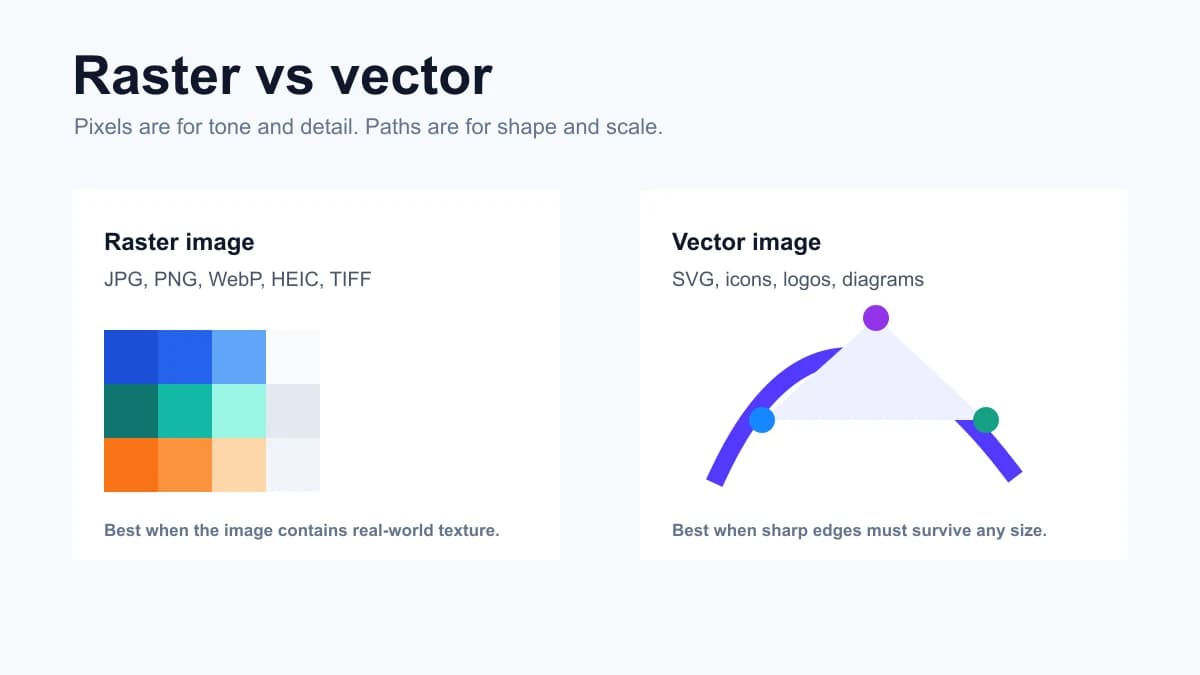
Most everyday photos are raster images, also called bitmap or pixel images. They are made from a grid of pixels, so they have a fixed resolution. When you enlarge them beyond their real pixel size, the image becomes soft, blocky or jagged.
Vector images describe shapes with paths, curves, fills and strokes. A vector logo can be scaled from a website icon to a poster without becoming blurry, and individual objects are easier to edit.
The boundary matters during conversion. Exporting SVG, EPS or AI to PNG/JPG is rasterization, which is useful for compatibility but removes vector editability. Turning a complex JPG back into a clean vector is tracing, and the result is always an approximation.
- Raster files are about pixels: they are good for photographs and screenshots.
- Vector files are about shapes: they are good for logos, icons, diagrams and print-safe marks.
- Once a vector source is exported to JPG or PNG, the copy is no longer the editable source.
03
Lossy vs lossless compression
This is where simple format lists become misleading. JPG is not “bad” because it is lossy; it is often exactly right for photos. PNG is not “high quality” in every case; it can be wasteful for a large photograph that nobody will edit.
The real question is what the image contains. Smooth photo tones survive controlled JPG or WebP compression well. Text, UI edges, charts and transparent cutouts suffer faster, because compression artifacts show up exactly where the eye expects a clean boundary.
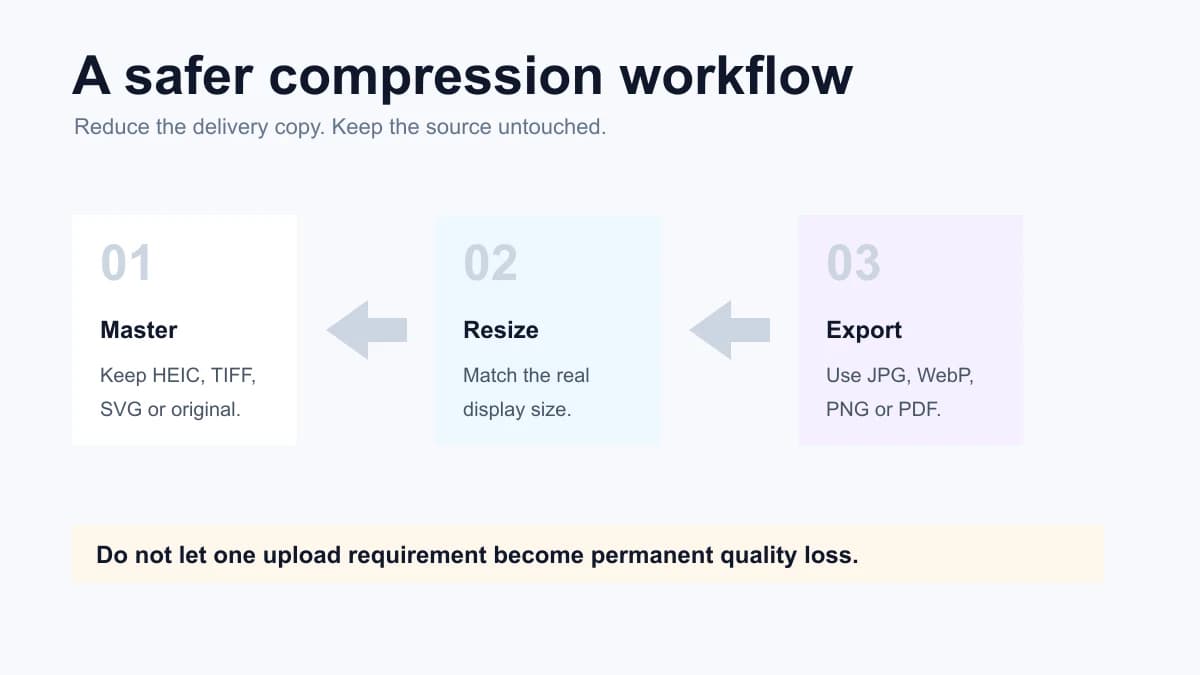
My rule is to compress the delivery copy, not the master. If the image is going to a public web page, I resize first, then use WebP or a carefully tuned JPG. If the image is a screenshot or design asset, I protect edge clarity first and only compress after checking the result at the final display size.
- Photo delivery copy: JPG, WebP or AVIF can be a good fit.
- Screenshot or UI copy: PNG or high-quality WebP is usually safer.
- Archive copy: keep the source, TIFF or original design file before making smaller exports.
04
Common image formats compared
I still like format comparison tables, but only when they answer a decision. A table that says “JPEG means Joint Photographic Experts Group” is easy to generate and hard to use. What matters is what breaks if you choose it wrong.
Below is the version I actually use: strength, weakness and the conversion I would normally make. It includes older formats such as GIF and BMP because they still show up in real files, but I treat them as legacy or special-purpose formats, not defaults.
| Format | Strength | Weakness | Useful conversion |
|---|---|---|---|
| JPG/JPEG | Small, compatible photo files | No transparency; lossy artifacts on edges and text | HEIC to JPG, WebP to JPG, PNG to JPG |
| PNG | Transparency and crisp pixels | Can be large for photos | JPG to PNG, SVG to PNG, PNG to WebP |
| WebP | Efficient web photos, graphics and animation | Some older tools still ask for JPG or PNG | PNG to WebP, JPG to WebP, WebP to JPG |
| AVIF | High compression for modern image delivery | Compatibility and encode speed are still less predictable | AVIF to JPG, AVIF to PNG |
| GIF | Simple animation and old platform support | Limited colors; heavy for rich animation | GIF to WebP when the platform supports it |
| HEIC/HEIF | Efficient camera storage on Apple devices | Rejected by many forms and older workflows | HEIC to JPG, HEIC to PNG |
| BMP | Simple Windows bitmap interchange | Usually huge and not useful for web publishing | BMP to JPG, BMP to PNG |
| SVG | Scalable logos, icons and diagrams | Not for natural photos; can require sanitization before web use | SVG to PNG, SVG to JPG |
| TIFF | High-quality scans, print and archive masters | Large files; not a normal web format | TIFF to JPG, TIFF to PNG |
| Fixed pages with images, vectors and text | Not a raw photo format; editing depends on the source | Images to PDF, PDF to JPG, PDF to PNG |
05
Pick the format by platform
This is the part I wish more format articles would say directly: the “best” format is usually decided by the platform, not by the file itself. A format can be technically better and still be wrong if the receiving system rejects it.
For upload forms, I choose boring compatibility first: JPG for photos, PNG for screenshots or transparency. For websites, I care about page weight and use WebP when the stack supports it. For a design handoff, I keep SVG or source files. For documents, I stop arguing about image extensions and export a PDF.
That is also why I do not treat conversion as a one-time replacement. One source image can have a web copy, an upload copy, a print copy and an archive copy. They are not duplicates; they are answers to different jobs.
- Rejected by upload form: convert to JPG first unless transparency is required.
- Large website image: resize, then convert PNG/JPG to WebP.
- Logo looks blurry: go back to SVG or export a larger PNG from the vector source.
- Multiple images need stable order: combine them into PDF.
06
A safe conversion workflow
My final workflow is deliberately conservative: source first, destination second, conversion third, compression last. I do not let a file extension drive the decision before I know what the next system needs.
Before converting, I mark what must survive: transparency, text sharpness, vector editability, page layout, metadata, color fidelity or broad compatibility. Then I export a copy, compare it at the final display size, and only then delete temporary versions.
If you remember one thing from this guide, make it this: do not overwrite the master. Use conversion tools to make delivery copies. That is how you get the benefits of JPG, PNG, WebP, SVG, HEIC and PDF without turning format choice into permanent quality loss.
FAQ
FAQ
- Which image format is best overall?
- There is no single best format. JPG is safest for photos, PNG is best for transparency, WebP and AVIF are strong for web delivery, SVG is best for simple vector graphics, and PDF is best for fixed documents.
- Should I delete the original after converting?
- Keep the original if it is a source photo, design asset, or archive copy. Use the converted file as a task-specific version for upload or sharing.
- What is the difference between JPG and PNG?
- JPG is usually smaller for photos because it uses lossy compression. PNG is lossless and supports transparency, so it is better for screenshots, logos, UI graphics and images with sharp text or edges.
- Is SVG a good format for photos?
- No. SVG is best for vector artwork such as logos, icons and diagrams. Photos are raster images with many pixel-level details, so JPG, WebP, AVIF, PNG or TIFF are usually more appropriate.
- Should every website image be WebP?
- No. I use WebP for delivery when the CMS, browser target and upload workflow support it. I still keep JPG or PNG copies for emails, older upload tools, feeds and partners that reject WebP.
- Can I just rename .heic to .jpg?
- No. Renaming only changes the filename, not the encoded image data. If a form needs JPG, decode the HEIC image and export a real JPG copy.
- Is PDF an image format?
- PDF is primarily a document format, but it can contain raster images, vector graphics and text. Use PDF when the final output should behave like fixed pages, and use JPG, PNG or WebP when you need a single image file.
 Image ConverterUse our Image Converter to change JPG, PNG, WebP, AVIF, GIF, BMP or TIFF files online. Choose JPG, PNG, WebP, AVIF or GIF output in seconds—no signup.
 PNG to WebP ConverterUse our PNG to WebP converter to create smaller website images in your browser. Adjust quality, preserve transparency, and download privately with no signup.
 HEIC to JPG ConverterUse this HEIC to JPG converter for HEIC and HEIF photos. Adjust quality, keep photos upright, remove location metadata, and download shareable JPG files.