Format compatibility
iPhone Photos Won’t Open on Windows? Here’s the Fix
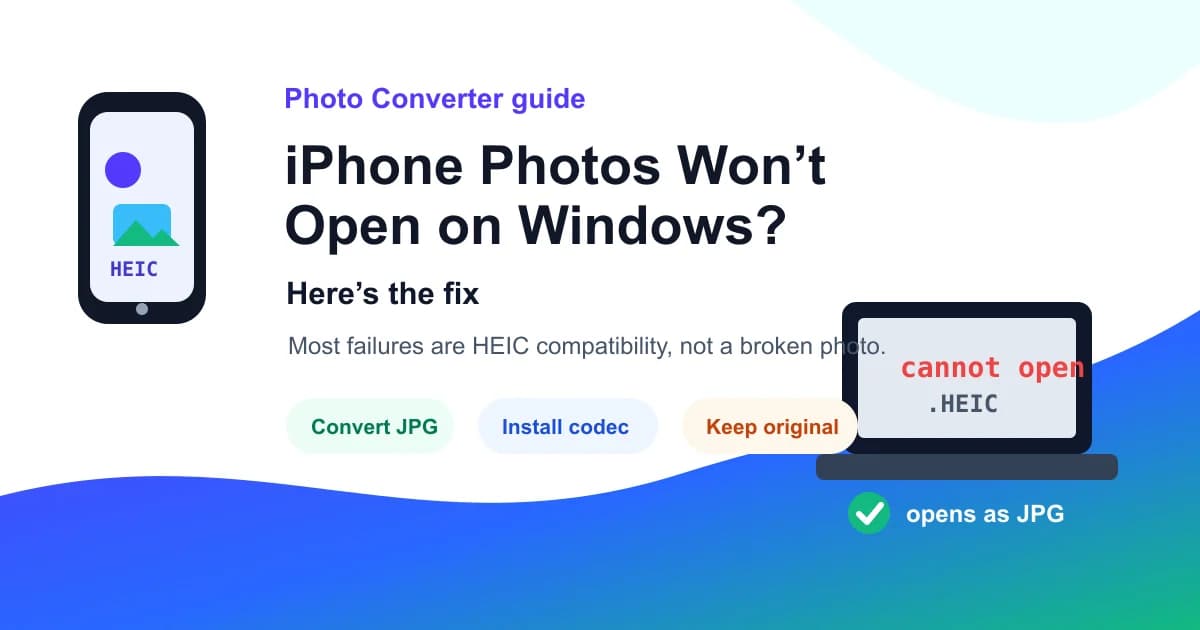
If a photo came from an iPhone and Windows will not open it, the file is usually HEIC, not broken. My rule: install support if this is your own PC; convert to JPG if you need to send, upload, print or hand it to someone else.
01
Quick answer: it is usually HEIC
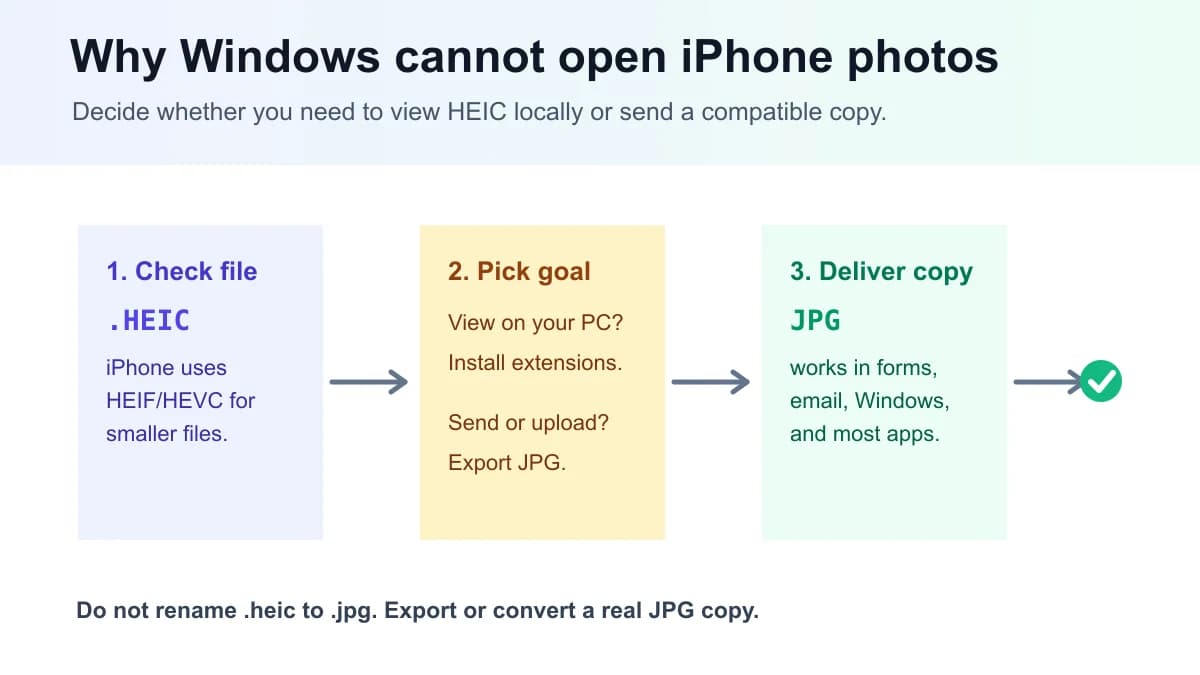
If iPhone photos will not open on Windows, first check the extension. A file ending in .heic or .heif is a High Efficiency Image file. It is efficient on Apple devices, but some Windows PCs, forms, email clients and older apps still expect JPG or PNG.
I use a simple split. If this is your own Windows PC and you want to browse many iPhone originals, install the Windows support Microsoft points you to. If the photo needs to be sent, uploaded to a form, printed, edited in an older app, or handed to a client, convert the HEIC to a real JPG copy.
Do not rename .heic to .jpg. That changes the filename only. The encoded image data is still HEIC, and strict apps can still reject it.
| What you see | Likely cause | Best fix |
|---|---|---|
| Photos app says it cannot display the file | HEIC/HEIF support is missing or incomplete | Install support or convert to JPG |
| A website refuses the iPhone photo | The upload form accepts JPG/PNG but not HEIC | Convert HEIC to JPG before upload |
| A client says the file is unsupported | Their Windows workflow expects a JPG copy | Send JPG and keep HEIC original |
02
Why Windows struggles with iPhone photos
Apple’s current cameras can save photos and videos in high-efficiency formats. Apple documents HEIF for photos and HEVC for videos as a way to keep quality while using less storage than older formats.
That storage benefit is exactly why the files surprise Windows users. The photo is valid, but the receiver needs software support for the format. Microsoft provides HEIF Image Extensions through the Microsoft Store, and Windows Photos may point users to the required extensions when it cannot display the file.
The practical problem is not whether HEIC is good. It is whether the next person, form, printer or Windows app can read it today.
03
Install support or convert to JPG?
This is where many articles become too simple. Installing support and converting are both valid, but they solve different jobs.
Install support when the Windows computer is yours, you want to keep the original HEIC files, and you only need to view them locally. Convert to JPG when compatibility matters more than keeping the Apple-native file: forms, school portals, government uploads, clients, email, printing and older editors.
I usually keep both: the HEIC original for archive, and a JPG delivery copy for everyone else.
| Situation | Better choice | Why |
|---|---|---|
| Your own Windows PC | Install HEIF support | You can keep iPhone originals and browse them locally |
| Online form or school portal | Convert to JPG | The uploader may reject HEIC even if your PC opens it |
| Client handoff or email | Convert to JPG | JPG is the safer common denominator |
04
Fix it before the next transfer
If you control the iPhone, you can reduce future friction. Apple documents a Most Compatible camera setting for capturing JPEG/H.264 instead of high-efficiency formats. That setting makes future photos more Windows-friendly, but it can use more storage.
Apple also documents transfer behavior for Mac or PC. Depending on settings and workflow, iPhone media can be transferred in original format or in a more compatible format.
My advice is not to change every iPhone forever without thinking. If you mostly live in Apple Photos and care about storage, keep HEIC. If your job is school forms, Windows clients, uploads and email attachments, Most Compatible or a JPG export workflow may save time.
05
Bad fixes I would avoid
The worst fix is renaming the extension. The second worst is deleting the HEIC original after making one compressed copy. A converted JPG is convenient, but it can lose some original efficiency, metadata or editing flexibility.
I also avoid repeatedly saving the same JPG at lower quality. If you need a smaller file for a Windows form, resize first, then compress once or use a target-size workflow.
If the image uploads sideways, that is usually an orientation problem, not proof that HEIC is broken. Export a corrected copy or rotate the image before submitting.
06
A safer Windows handoff workflow
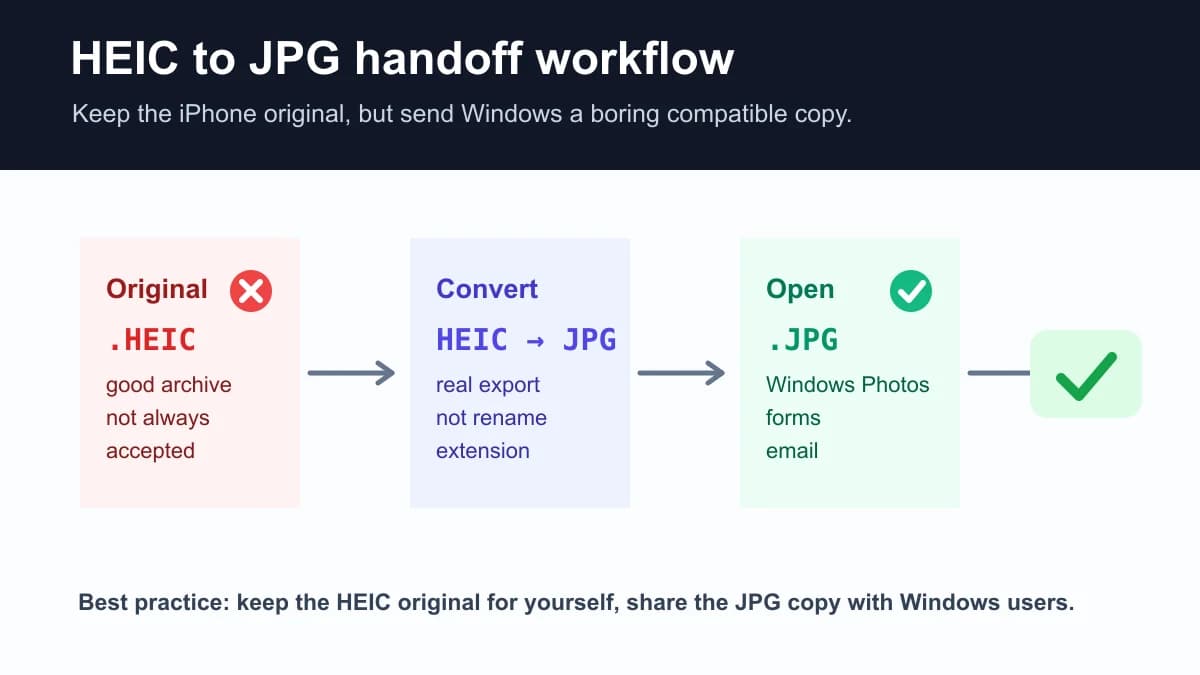
Here is the workflow I use for iPhone photos that must work on Windows. Keep the HEIC original. Make a JPG copy. Open the JPG on Windows or in the target form. Only then compress, resize or rename the delivery copy if the destination requires it.
This keeps the quality decision reversible. If the first JPG is too large, reduce the JPG copy. If the recipient needs a PNG, convert a copy. If the form asks for one document, place the JPGs into a PDF. The original iPhone photo remains untouched.
07
Tools I would use
The primary tool for this problem is HEIC to JPG. That is the safest answer for Windows users, online forms and clients. HEIC to PNG is useful for screenshots or graphics, but for normal camera photos JPG is usually the better handoff format.
Use Image Converter when the receiver gives a different explicit format. Use Reduce Image Size only after conversion if the JPG is still above the upload limit.
| Need | Use | Why |
|---|---|---|
| Open iPhone photo on Windows or upload it | HEIC to JPG | Best compatibility for photos |
| Graphic or screenshot needs PNG | HEIC to PNG | PNG can preserve crisp graphics |
| JPG copy is still too large | Reduce Image Size | Hit a target upload limit |
FAQ
FAQ
- Why won’t my iPhone photos open on Windows?
- Most likely because the file is HEIC or HEIF and the Windows app does not have the required support. Convert to JPG for maximum compatibility or install Windows HEIF support for local viewing.
- Is HEIC better than JPG?
- HEIC is efficient and good for Apple-device storage. JPG is usually better for sharing with Windows users, upload forms, email and older apps.
- Can I rename HEIC to JPG?
- No. Renaming only changes the filename. You need to export or convert a real JPG copy so the encoded image data changes.
- Should I install HEIF extensions or convert to JPG?
- Install extensions for your own PC if you want to view many HEIC originals. Convert to JPG when another person, form, printer or older app must open the photo.
- Will converting HEIC to JPG reduce quality?
- It can, because JPG is a lossy delivery format. For normal photos, a high-quality JPG copy is usually visually fine. Keep the HEIC original if you may need the best source later.
- How do I stop iPhone from taking HEIC photos?
- On iPhone, use Settings > Camera > Formats > Most Compatible if you prefer future photos as JPEG. Expect larger files compared with high-efficiency capture.
- Why does Windows open some iPhone photos but not others?
- Some may already be JPG, while others are HEIC. Transfer settings, sharing method, camera settings and editing apps can produce different output formats.
 HEIC to JPG ConverterUse this HEIC to JPG converter for HEIC and HEIF photos. Adjust quality, keep photos upright, remove location metadata, and download shareable JPG files.
 Image ConverterUse our Image Converter to change JPG, PNG, WebP, AVIF, GIF, BMP or TIFF files online. Choose JPG, PNG, WebP, AVIF or GIF output in seconds—no signup.
 HEIC to PNG ConverterConvert HEIC to PNG online with secure cloud processing. Preserve detail and transparency in a lossless PNG for editing. Free to start; no software needed.